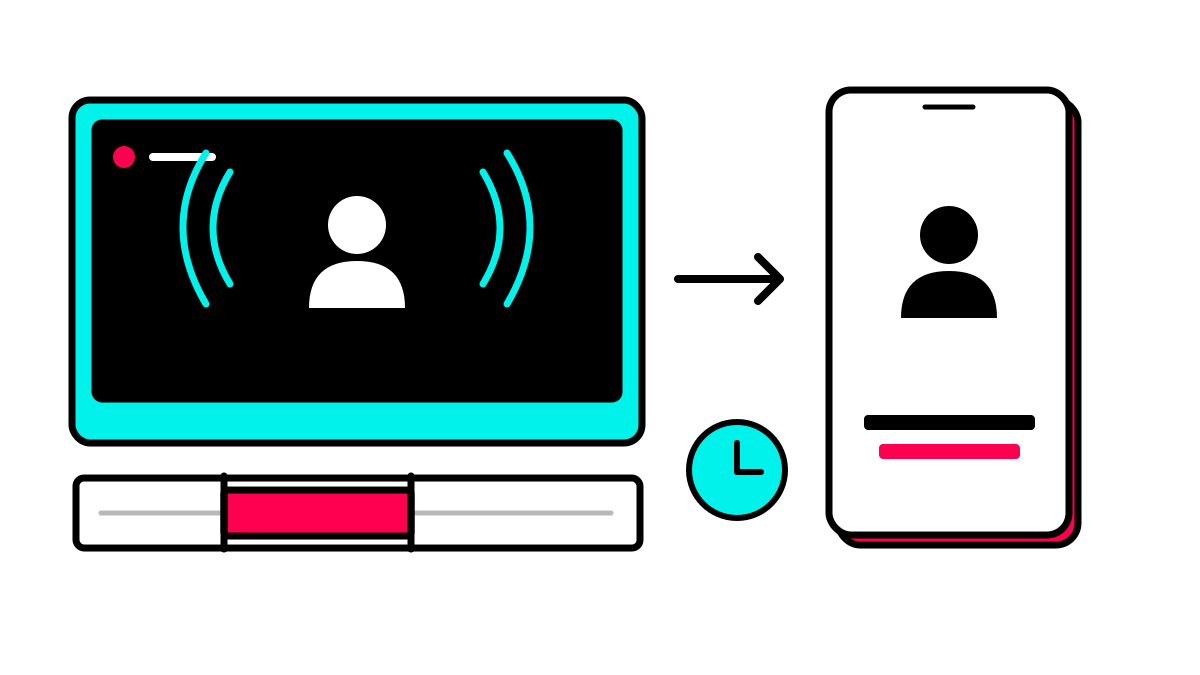
What you can use in your next clip
- Choose a useful capture window
- Understand saving versus discarding a recording
- Review the recording and cut suitable moments
Jump to the section you need
A useful livestream moment is not automatically a finished clip. The question may live in the chat, the answer may start halfway through a thought, and the conclusion may refer to something coming later. To make a standalone extract, separate two decisions: which live window to record and which complete statement to cut from it.
Our running example is fictional: Mara and Ben host a live question session about newsletters for small clubs. They answer, “How do we choose a topic for our first issue?” This is an editing exercise, not a customer story or a report of measured results.
1. Plan a recording window rather than continuous monitoring
With Premium, PodViral records livestream windows of 1, 5, 10 or 15 minutes. Recording starts at the current live point once the connection is established. It does not recover a moment that already happened. This workflow also does not continuously monitor a channel or automatically start an endless sequence of recordings.
In our example, Mara announces the newsletter question. You start a five-minute window before Ben begins answering. That duration is a choice for this task, not a universal recommendation. If the useful sentence has already passed, use an existing recording file instead of expecting a new live capture to replay the earlier moment.
2. Choose a reachable source and start deliberately
Open the clip generator and select Livestream as the source. The interface accepts public YouTube Live video links, Twitch channels and public HTTPS streams with an .m3u8 address. For YouTube, use the specific broadcast’s video link. A general channel page is not a substitute. The source must be reachable without a login or copy protection.
- Check that the intended broadcast is live and that you can use the material.
- Paste the complete HTTPS link and choose a recording window.
- Start recording, then check the connection status and recorded duration.
An accepted link format does not guarantee access: a platform can block server requests. A stream can go offline or deliver an unsupported format. Check the source and error message if that happens. For the fictional session, you could use your own recording file if a live connection cannot be established.
3. Distinguish saving, cancelling and finishing
You can leave the page while recording continues in the background. One livestream recording can be active per account. Stop and save ends a running window early once at least ten seconds have been captured. Cancel recording discards it. Do not use cancellation as a shortcut to a saved video.
Ben finishes his initial explanation before the five minutes are over. You keep recording through Mara’s follow-up question and his clarification, then stop and save. The recording still needs to finish processing. Only the saved source is ready to reuse; a moving counter is not yet a playable clip. The finished recording appears in My Videos.
4. Bring the chat question into the story
Ben starts his answer with “That is exactly where I would begin.” The reference makes sense live because Mara has just read a comment. In an isolated clip, that information disappears. Listen to the start of the saved passage and decide whether to keep Mara’s complete question in the edit.
One version starts with “How do we choose a topic for our first club newsletter?” and follows directly with Ben’s answer. A short factual text label can also provide context, but it cannot replace a missing explanation. Do not include private chat details merely because they appeared in the stream. The guide to finding standalone highlights provides a practical selection framework.
From the idea to the finished clip
One capture window. One clear clip.
Choose a livestream source and save a bounded recording. Then use that recording to create clips.
- 1Choose the livestream source
- 2Check the public link and capture duration
- 3Use the saved recording to create clips
Livestream capture requires Premium. It is not continuous monitoring; the platform may refuse access.
5. Cut an answer that reaches a usable conclusion
Ben first mentions dates, updates and questions from members. He then explains his choice: the first issue should answer one frequently asked question using a concrete example. The clip needs that decision. Keeping only the list of possible topics would leave the opening question partly unanswered.
Review automatically suggested spoken moments or set the time range yourself. Start where the question becomes clear and finish after the reasoned choice. Remove a greeting to a new viewer only if the edit preserves the thought. Our guide to clip length and clean boundaries explores that choice without prescribing a fixed number of seconds.
6. Review live elements in the vertical export
Livestreams often include graphics, small names or a chat column. In the example, Mara and Ben sit side by side with a lower-third graphic beneath them. Review your chosen style against this actual recording. A tight crop may remove the person asking the question, while new captions may cover text already in the source.
Watch at least the opening sentence, the speaker change and the final recommendation in the export. Listen to the full audio too: Ben may briefly become quieter, or a notification sound may cover a word. The guide to podcast clips with two speakers explains how to check dialogue and framing together. An effect does not replace this review.
7. Give every saved version a clear status
Keep the recorded window distinct from the finished post. For our example, record the session, selected question, source time range and export filename. Add any outstanding checks for names, captions or approvals. That prevents a technically completed download from being mistaken for an approved version that is ready to publish.
- Does the newsletter question make sense without the chat or backstory?
- Does the clip include Ben’s choice and the reason for it?
- Are both conversational roles, on-screen text and audio clear?
💡Start with one live window and one fully reviewed clip. The next capture is a deliberate new decision, not an automatically scheduled continuous recording.
Try the workflow in the PodViral clip generator with a source you can use. Plan the moment first, save a useful recording window, then decide on the actual edit.
From the idea to the finished clip
One capture window. One clear clip.
Choose a livestream source and save a bounded recording. Then use that recording to create clips.
- 1Choose the livestream source
- 2Check the public link and capture duration
- 3Use the saved recording to create clips
Livestream capture requires Premium. It is not continuous monitoring; the platform may refuse access.